
Subcanvas - Matlab Usage
Subcanvas Matlab Usage
awe_generate_container.m
All of the features described above for the Standard Edition continue to work. The Pro Edition adds the possibility of generating the Subcanvas files using scripts. The main function is:
BOOL = awe_generate_container(SYS, SETTINGS, NAME, OUTPUT_DIR, VERBOSE);
where
SYS – Top-level Audio Weaver system object.
SETTINGS – a structure which configures the Subcanvas generation process.
NAME – base name to use for generating the files.
OUTPUT_DIR – fully qualified path name of the output directory to deposit the 4 files in
VERBOSE – optional Boolean argument which displays logging information to the command line
The function awe_generate_container_settings.m returns a structure with the default SETTINGS structure:
>> awe_generate_container_settings

ans =

    struct with fields:

    containerType: 'Toplevel'
    encryptAWB: 1
    enableAudio: 1
    buildConfiguration: 'release'
    maxMessageLength: 264
    bundlePackets: 1
    requireObjectIDs: 1
    heapPadding: [1000 1000 1000]
    exposeVariables: []
    version: [1 2 3 4 5 6 7 8]
    comments: {'The first line.'  'The second line'}
Most of the items in the structure map exactly to the controls on the Generate Target File dialog. A few new ones are:
buildConfiguration – Specify whether you want to use a ‘debug’ or ‘release’ build when generating the Container.
maxMessageLength – Maximum size of tuning messages that will be used in the Container. Keep this at 264 unless the target you are deploying on has a different tuning * buffer size*
requireObjectIDs – If set to 1, then tunable variables can only be exposed on modules that have custom objectdIDs assigned to them (>=30000). If set to 0, then checking * is relaxed and tunable variables can have objectIds < 30000.
This field in the structure specifies which variables should be exposed:
SETTINGS.exposeVariable = VI;
VI is a structure array. You can get an empty version of a single structure with the command:
>> empty_subcanvas_variable_descriptor

ans =

  struct with fields:

  hName: ''
  aliasName: ''
  objectID: []
  handle: []
  dataType: ''
  mask: []
  range: []
  isArray: []
  size: []
  usage: ''
  description: ''
  units: ''
  isRangeEditable: []
You fill in a few of these items in your code:
hName – hierarchical name of the module or variable to expose. Here are some examples:
‘Scaler.gain’ – only exposes a single variable in the module ‘Scaler’. ‘Scaler’ is at the top-level of the system
‘Scaler’ - exposes all of the variables associated with the module called ‘Scaler’.
‘GainControl.Scaler’ - The module to expose is now in the subsystem ‘GainControl’.
‘GainControl’ – expose all of the variables for all of the module in the subsystem ‘GainControl’.
aliasName – allows you to rename a variable to use a friendlier name. For example, instead of calling the module ‘Scaler’, I could set the aliasName to ‘masterVolume’.
range - A 2 or 3 element vector which sets range information for the variable. The format for 2 elements is [min max]. The format with 3 elements is [min max step]. The range information is used by the SubcanvasParamSet and SubcanvasArraySet modules. For example, if you set this to [-12 12], then the SubcanvasParamSet and SubcanvasArraySet modules will clip values to this range. If empty, it will use the .range information associated with the variable.
description – optional text description of what the variable does. If not specified, it will use the .description field associated with the module’s variable.
Units – optional text describing what units are associated with this variable. If not specified, it will use the .units field associated with the module’s variable.
The rest of the fields are set by the awe_generate_container.m function and are taken from the underlying variable data structure. See the Audio Weaver Module Developers Guide for more information.
objectID – numeric objectID of the module to control
handle – numeric control handle used by the AWECore APIs
dataType – string specifying the data type of the variable. This can be ‘float’, ‘fract32’, ‘int’, and ‘uint’.
mask – bit mask used by the internal module’s Set() function when updating the value.
isArray – Boolean value specifying where the variable is a scalar (=0) or an array (=1).
size – 1x2 element array specifying the size of the value. All scalar values have [1 1].
usage – How the variable is used within the module. It can be ‘parameter’, ‘state’, ‘const’, ‘derived’.
isRangeEditable – Boolean specifying whether the range information be changed (or ignored). For example, if you are changing a gain value, then it is probably OK to update the range information. However, if you are changing the delay time of a module, it is probably not OK to exceed the range settings.
Here is example code showing how multiple variables could be exposed in a script:
VI = empty_subcanvas_variable_descriptor;
VI.hName = 'Sine1.freq';        % Expose variable
SETTINGS.exposeVariable = VI;   % First variable

VI = empty_subcanvas_variable_descriptor;
VI.hName = 'Mute1.isMuted';     % Expose variable and rename
VI.aliasName = 'MasterMute.isMuted';
SETTINGS.exposeVariable(end+1) = VI;    % Append next variable

VI = empty_subcanvas_variable_descriptor;
VI.hName = 'Scaler1';           % Expose module and rename
VI.aliasName = 'Scaler';
SETTINGS.exposeVariable(end+1) = VI;

VI = empty_subcanvas_variable_descriptor;
VI.hName = 'SourceV2_1';        % Expose module and rename
VI.aliasName = 'IN';
SETTINGS.exposeVariable(end+1) = VI;

VI = empty_subcanvas_variable_descriptor;
VI.hName = 'Sink1';             % Expose module and rename
VI.aliasName = 'OUT';
SETTINGS.exposeVariable(end+1) = VI;

VI = empty_subcanvas_variable_descriptor;
VI.hName = 'Meter1';            % Expose variable
SETTINGS.exposeVariable(end+1) = VI;
load_container.m
This function allows you to load a Subcanvas at run-time using Matlab scripts. The function is:
load_container(M, AWC_FILE, VERBOSE)
where
M – Subcanvas object in the signal flow.
AWC – fully qualified name of the AWC container file.
VERBOSE – optional flow for display progress on the Matlab console.
For example, suppose you have the following top-level signal flow running in Designer. It has a single Subcanvas module named “Subcanvas1”.
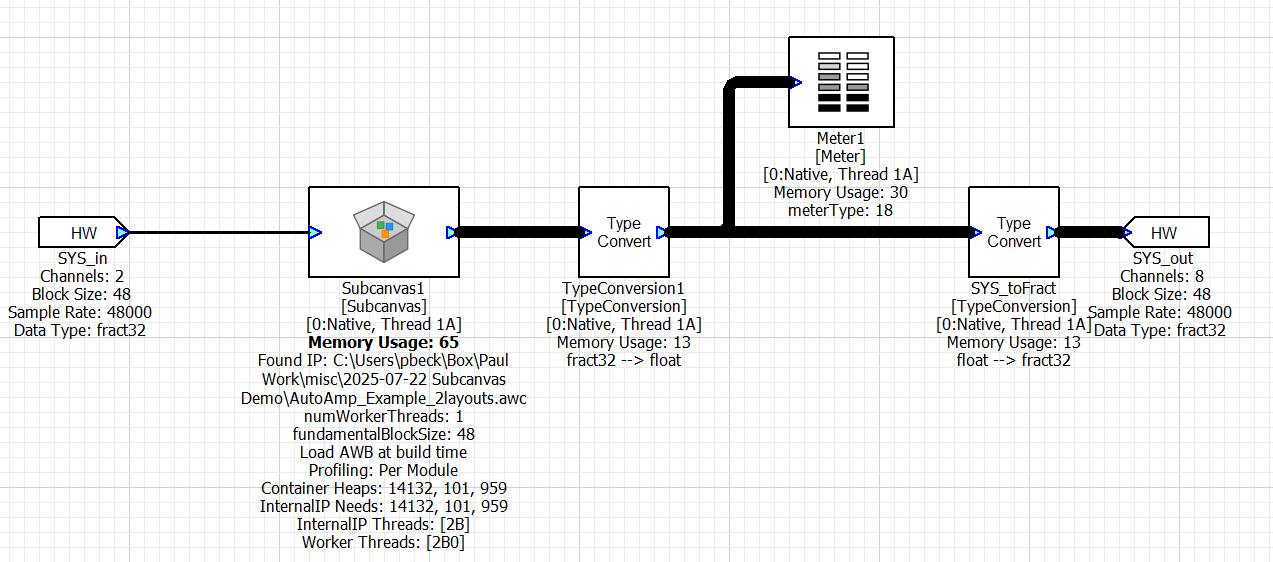
image26
To manually load the Subcanvas, use these Matlab commands:
GSYS = get_gsys;
load_container(GSYS.SYS.Subcanvas1, ‘C:\filepath\AutoAmp_Example_2layout.awc’);
If you set the VERBOSE flag to 1, then it will show progress of loading the Subcanvas to the Matlab console. You will see something like:
Sent bundle packet 1
Sent bundle packet 2
Sent bundle packet 3
Sent bundle packet 4
Sent bundle packet 5
Sent bundle packet 6
To unload the contents of the Subcanvas (essentially destroy the internal AWECore instance), use:
GSYS.SYS.Subcanvas1.SC.reset=1;